T-Smart-WiFi Smart Remote Setup Guide
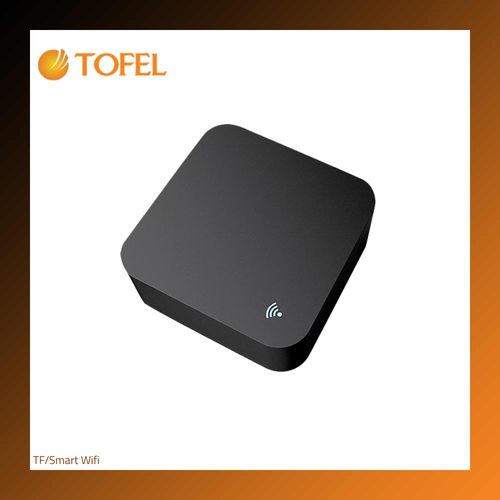
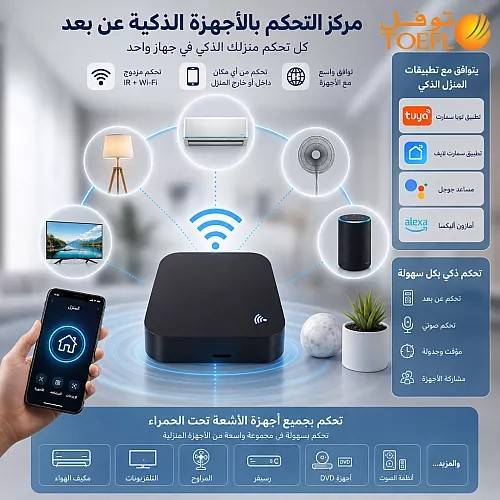
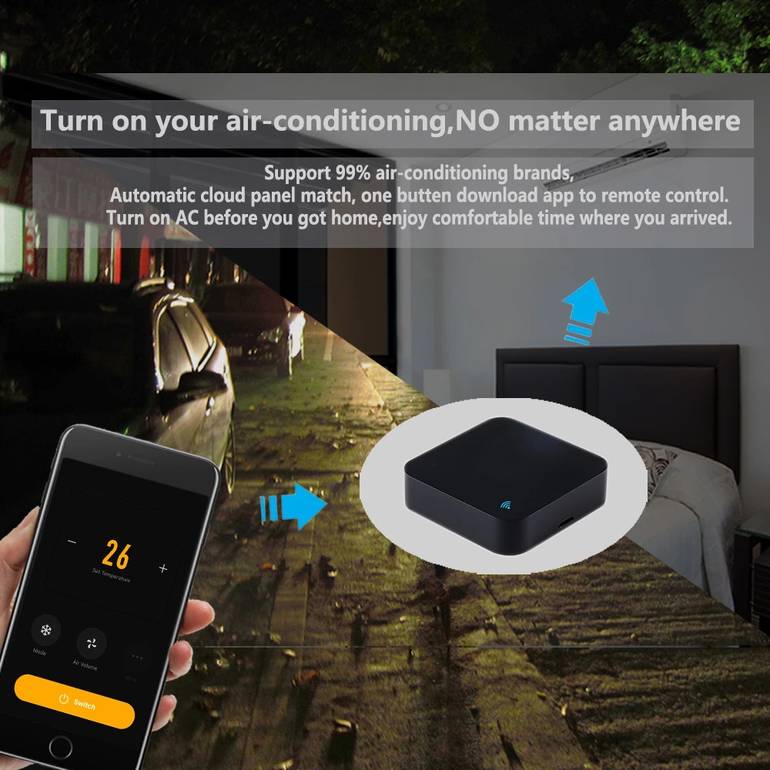
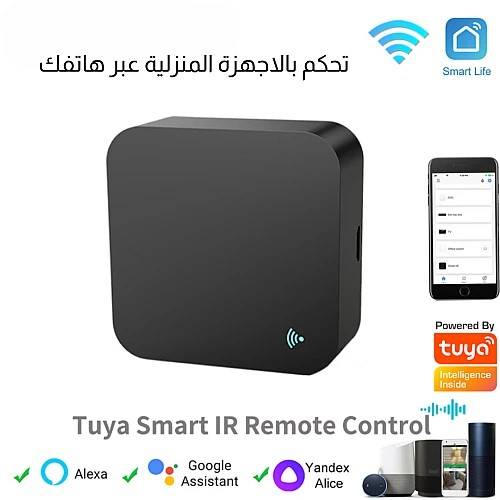
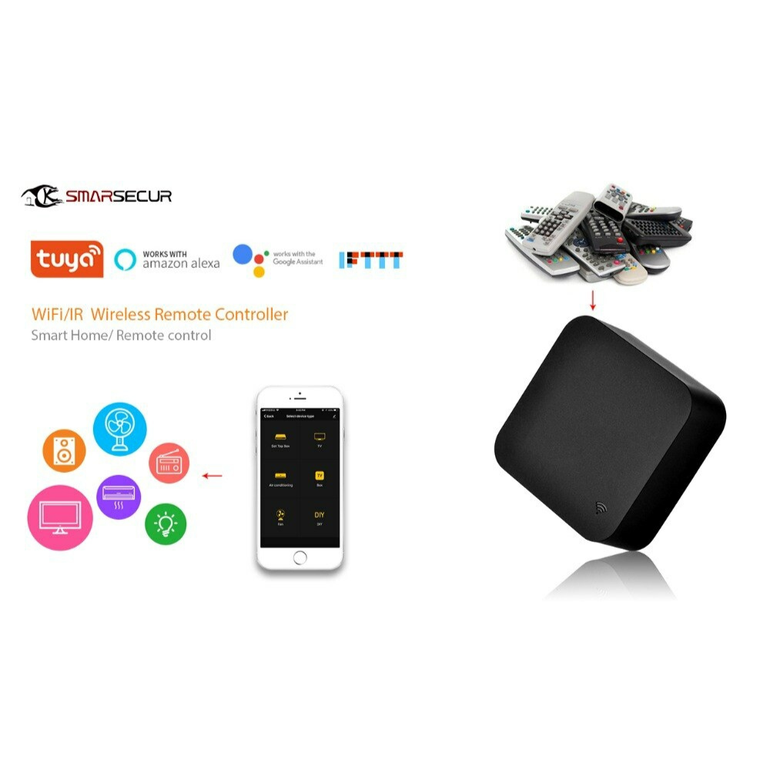
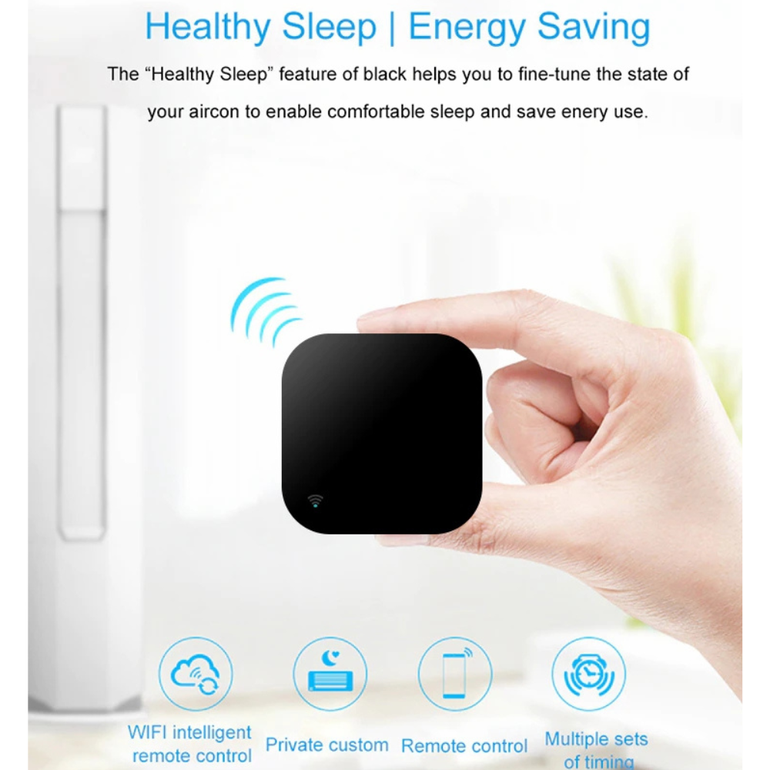
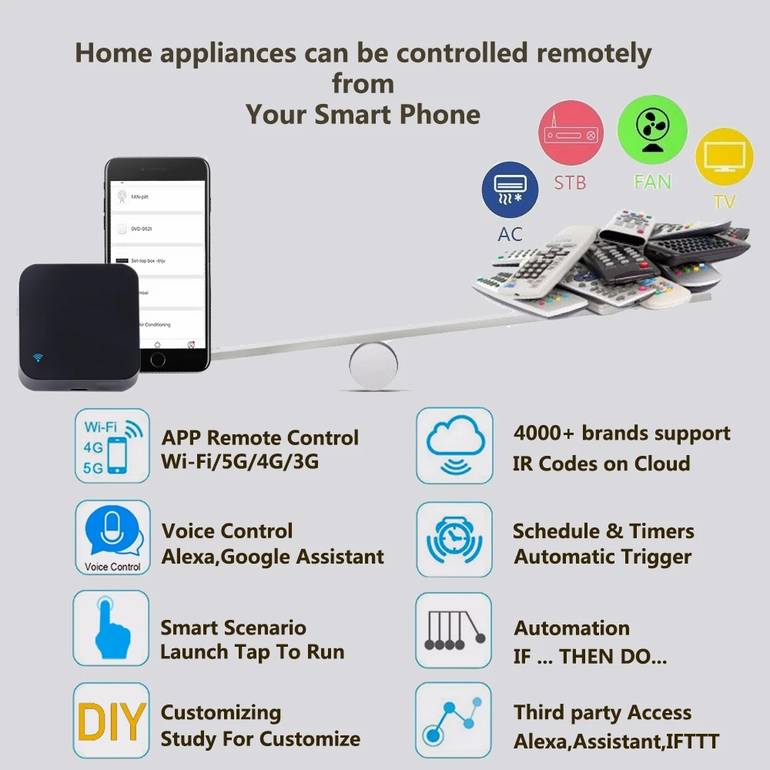
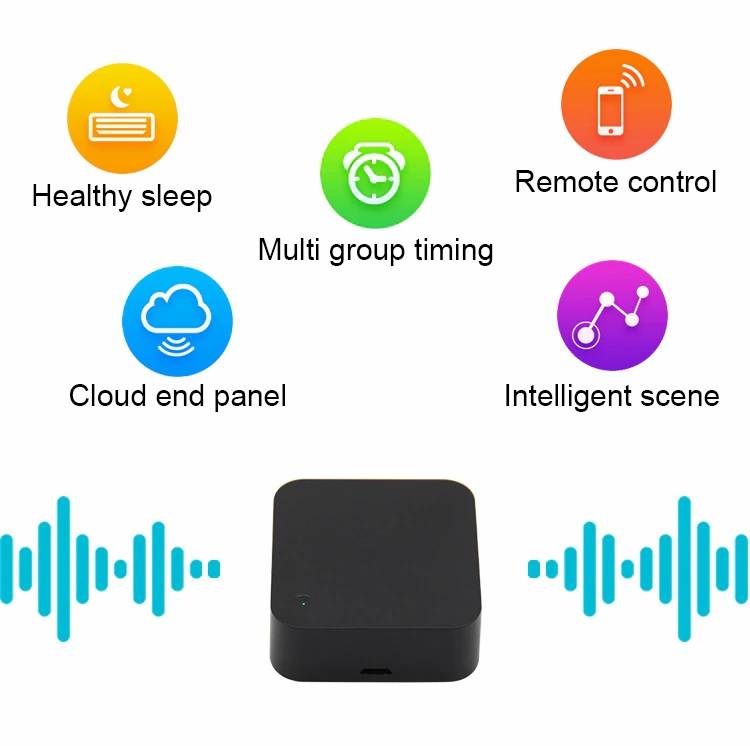
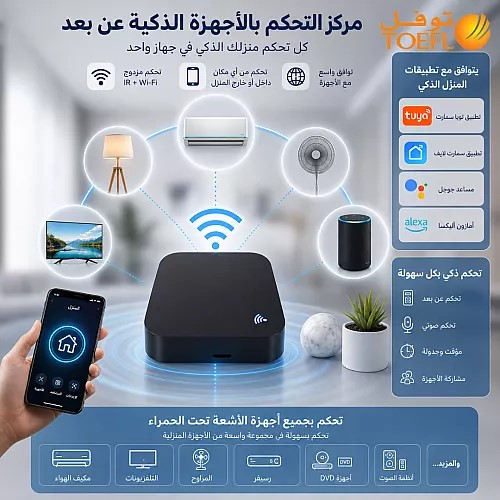
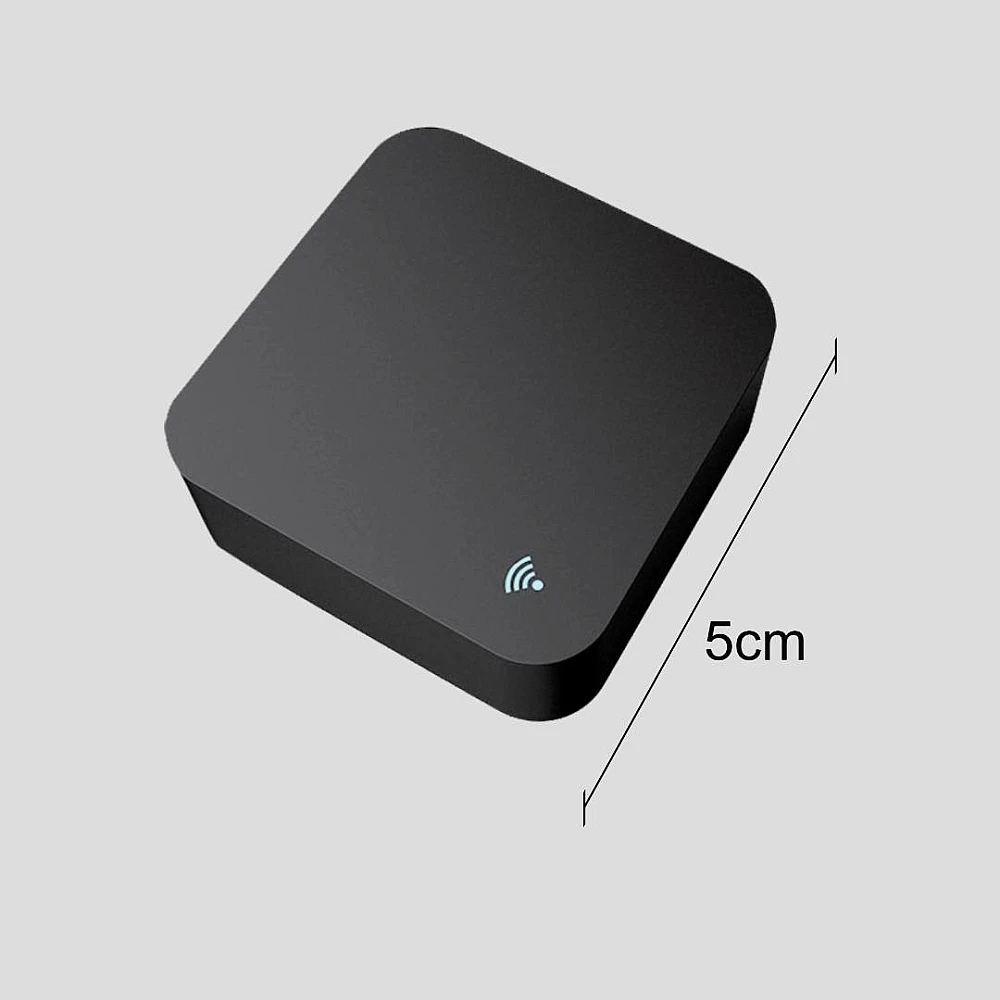
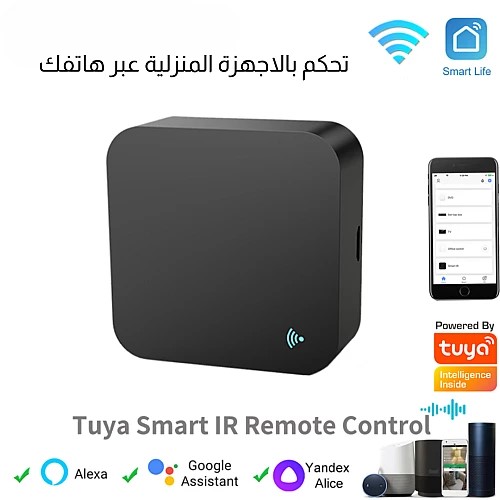
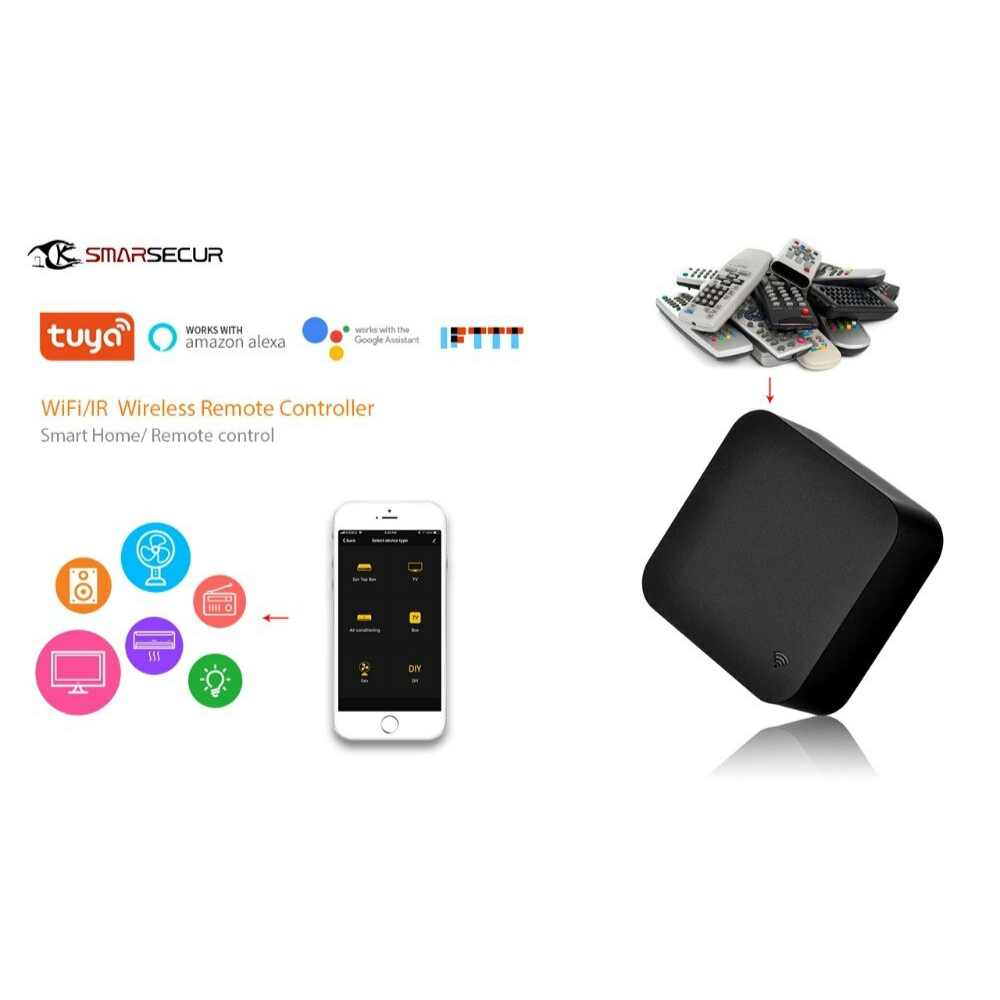
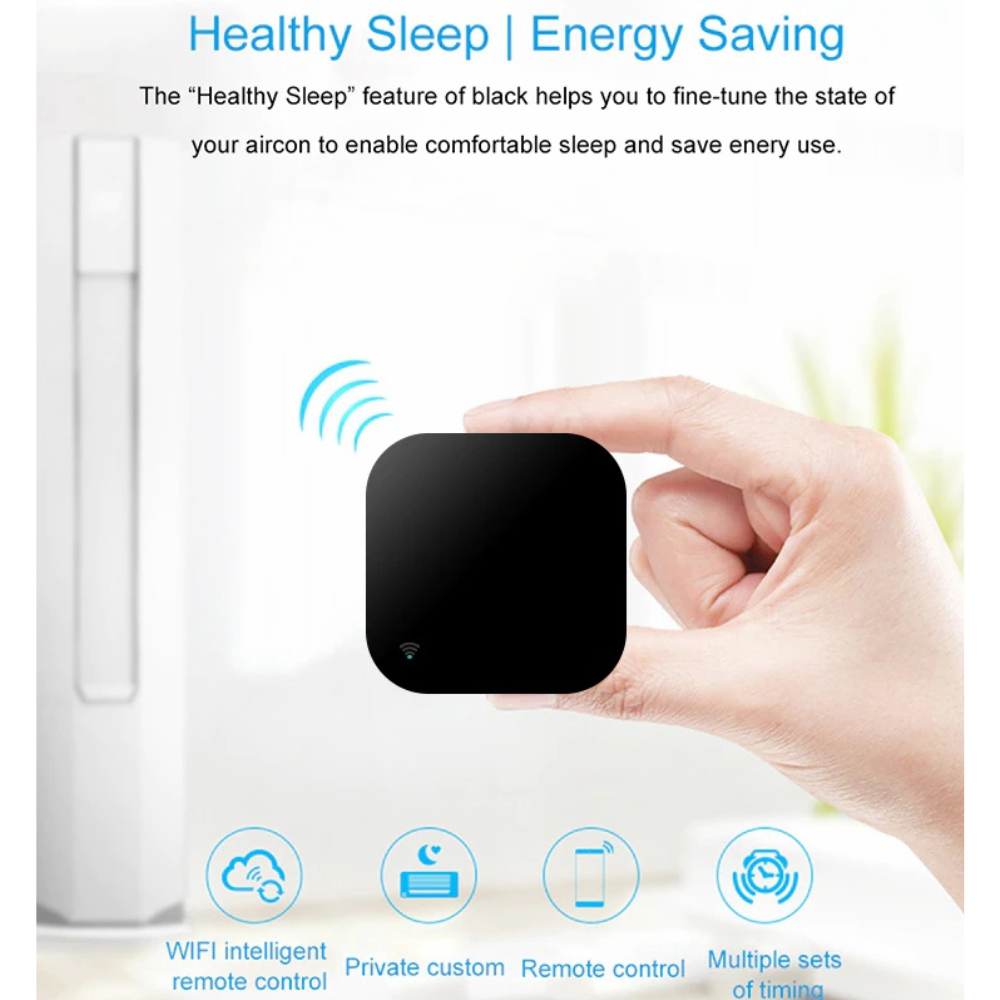
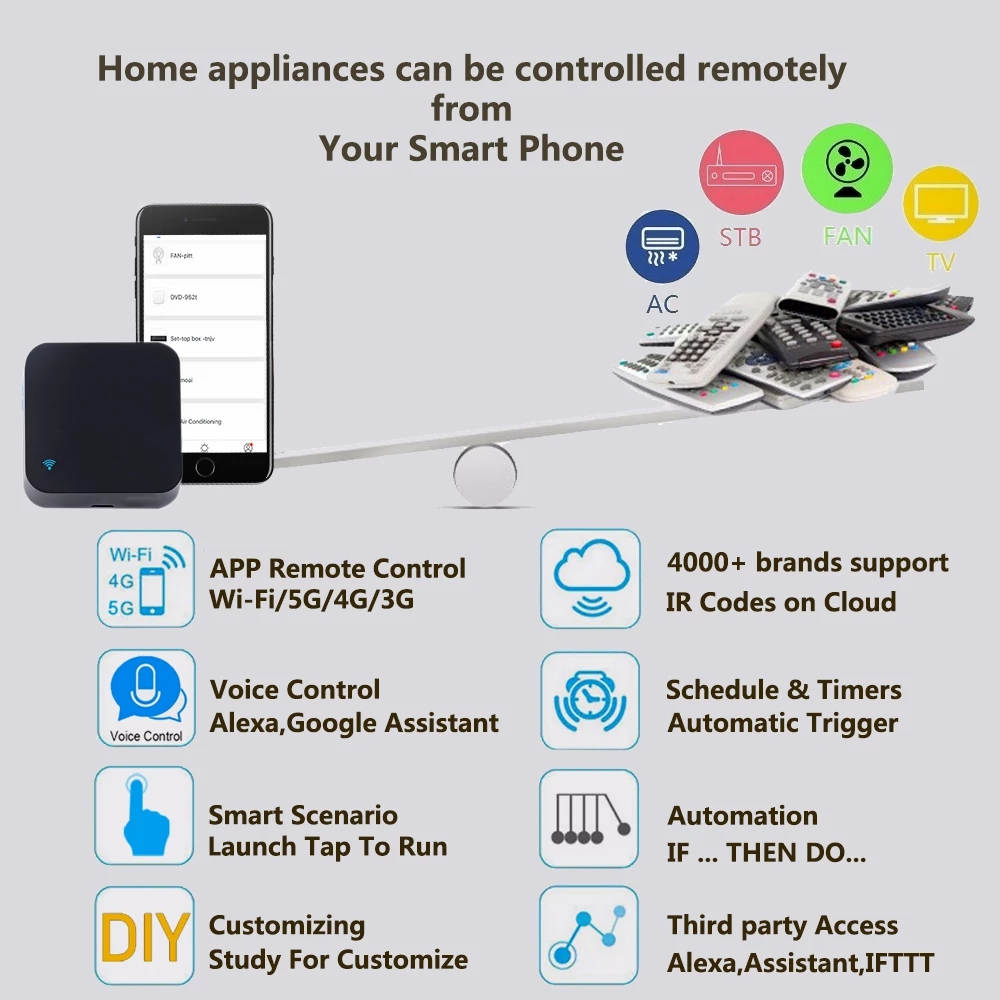
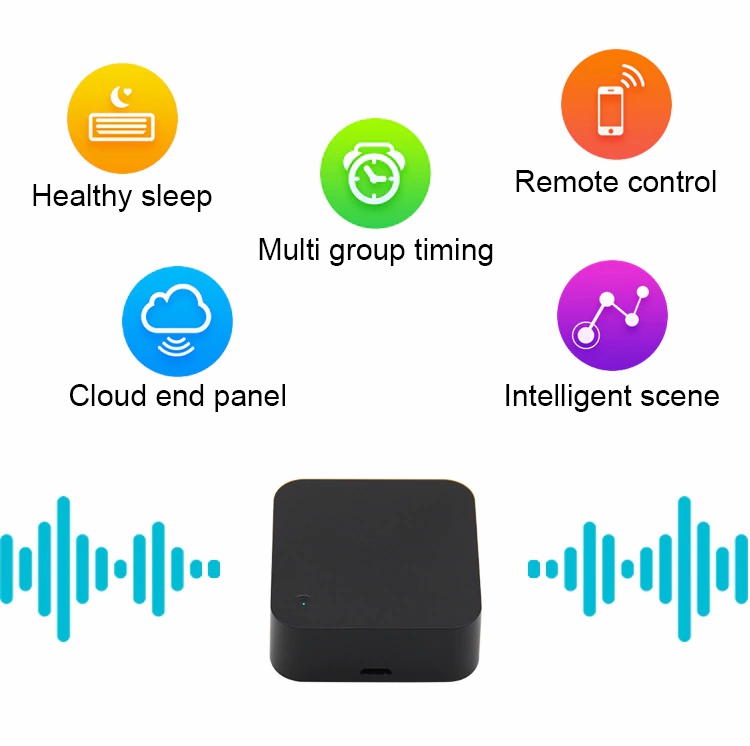
The T-Smart-WiFi Smart IR Remote is a compact and powerful solution for managing your home devices with ease. Designed to replace traditional remote controls, it offers seamless control over a wide range of infrared-enabled appliances from anywhere using your smartphone or voice commands.
Step-by-Step Connection Instructions
-
Download the Required App
- For Android: Search for “Smart Life” or “Tuya Smart” on Google Play
- For iPhone: Search for “Smart Life” on the App Store
- Alternative: “Tuya Smart” app (equally effective)
-
Device Setup
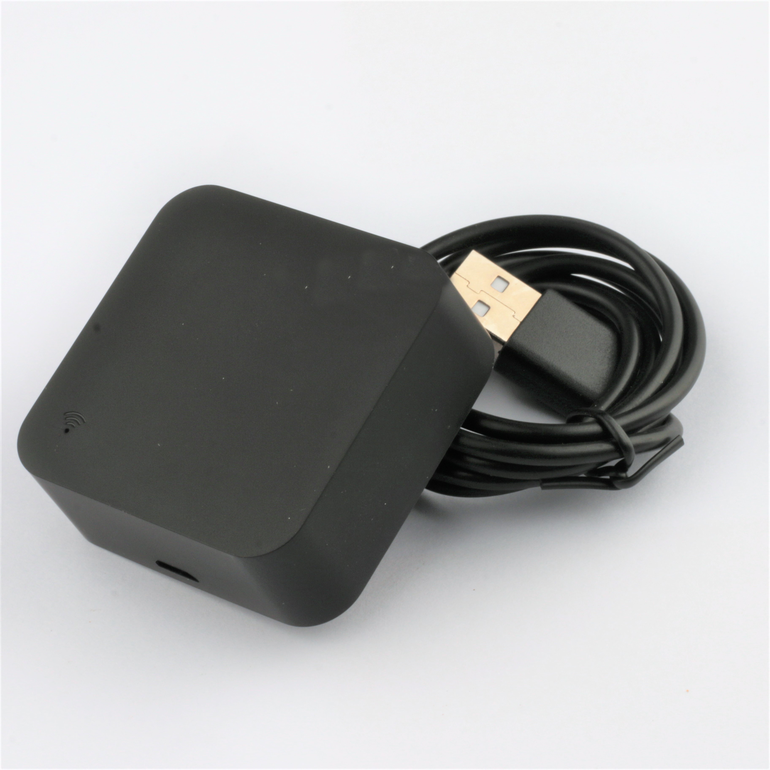
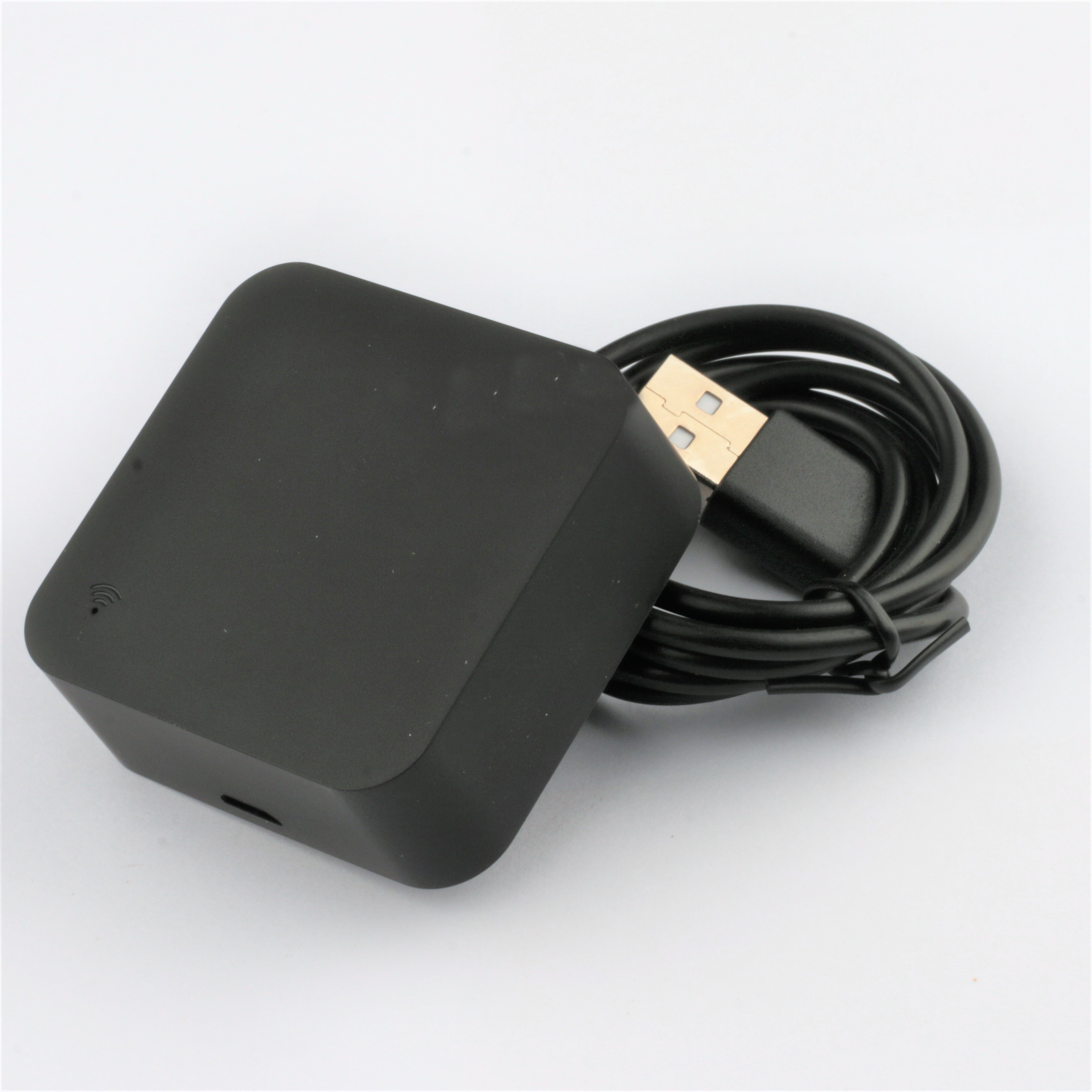
- Connect the smart remote to a power source using the included USB cable
- Wait until the LED indicator flashes rapidly in blue
-
Pairing with the App
- Open the Smart Life app
- Tap the (+) icon at the top of the screen
- Select “Add Device” then choose “IR Remote Controller”
- Choose a 2.4GHz WiFi network and enter the password
- Follow the instructions to complete pairing
Adding Devices to the Smart Remote
Voice Assistant Integration
-
With Google Assistant
- Open the Google Home app
- Tap “+” then “Set up device”
- Choose “Works with Google”
- Search for “Smart Life” or “Tuya Smart”
- Log in with your app account
- Say: “OK Google, turn on the air conditioner”
-
With Amazon Alexa
- Open the Alexa app
- Go to “Skills & Games”
- Search for “Smart Life” or “Tuya”
- Log in with your app account
- Say: “Alexa, turn on the TV”
Additional Features
-
Scheduling
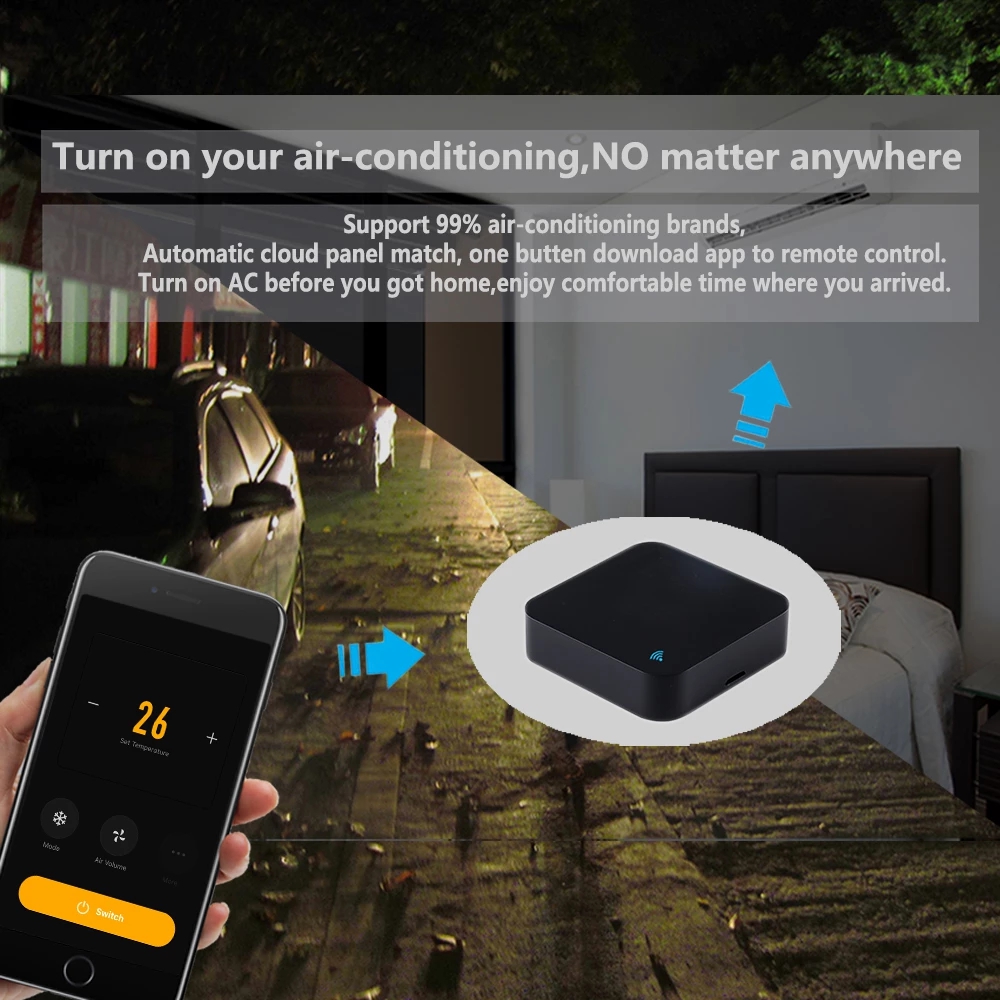
- Set the air conditioner to turn on one hour before you arrive home
- Program the TV to turn off automatically at midnight
-
IFTTT Scenarios
- If the temperature exceeds 30°C, turn on the air conditioner
- If the sun sets, turn on the lights and TV
-
Shared Control
- Share device control with family members via the app
- Assign different permissions to each user